

STS supports the creation of templates from existing applications. An application template is not simply a copy of the application it is based on, but a set of rules and conditions with which the original application can be recreated in a standardized and efficient way.
Understanding application templates
As an example, we will turn a 61869-9 Sampled Value application into a template.
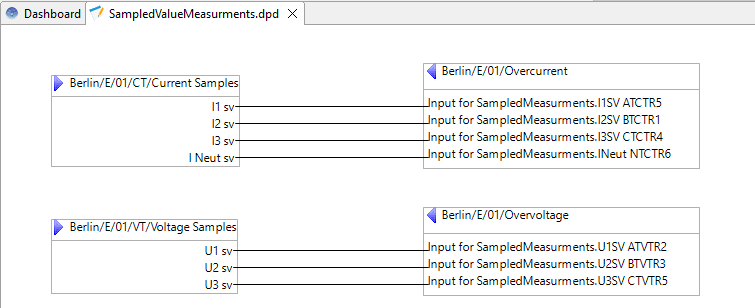
Template Creation
To create a template you need first to create standard application. These application should contain all the functions that participate the application Scheme.
It is important during the creation of the template to already think about the application template roles and not the final publisher/subscriber function. Only one function per application scheme roles is necessary for the creation of the template. In our example we will have 4 roles :
-
Current_Publisher
-
Voltage_Publisher
-
Current_Subscriber
-
Voltage_Subscriber
If in our final SampledValues scheme we will have other function (e. g Distance Protection, Measurements,…) that used these roles, these function must not be part of the template creation. The roles assignment to these other function will be described later.
To create a template, select the “Add to library” menu entry in the right-click context menu of an application.
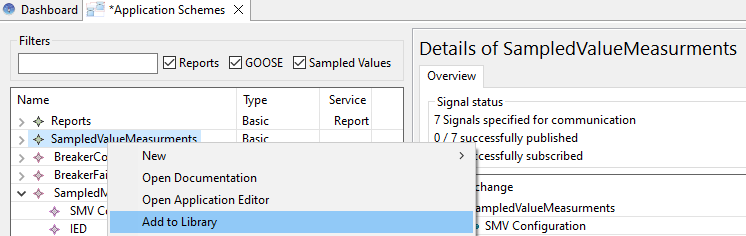
A wizard will pop up to guide you through the template creation process. As part of that process, the actual communication links that are used by an application need to be enriched with (meaningful) annotations.
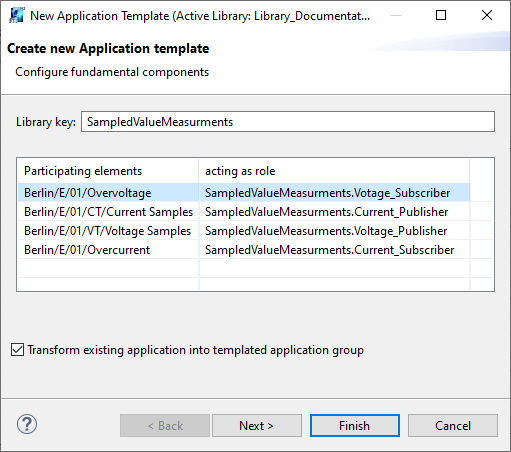
In the first wizard page, a unique library key will be assigned to the application template. This key is used to identify and retrieve the template.
Previous template that uses this key will be overwritten.
The functions that are used in the application (shown in the table as ‘Participating elements’) will be assigned with a role identifier. This should be a human-readable name that allows the user of the template to identify the purpose of that function at a glance.
The initial proposed role is based on the function name. Despite of this a more meaning full name can be entered by the user.
E.g. if multiple function with serve as subscriber role the initial proposed name will probably not be meaningful in the point of view of the application scheme. In our example we have change overcurrent by Current_Subscriber because later this role will be attached also to distance protection function and measurements function where the role overcurrent will not make sense.
The checkbox ‘Transform existing application into templated application group’ can be deselected to leave the original application unchanged. Otherwise, it will be turned into one entry in a group of applications conforming to the template.
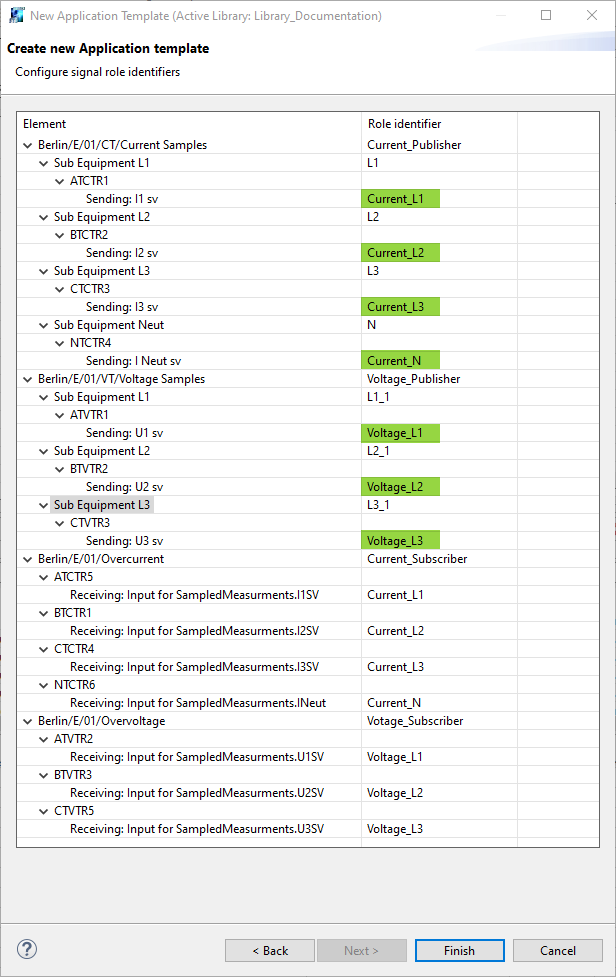
In the second wizard page, Roles can be assigned to individual signals (and Inputs). In the example, we chose the roles ‘Current_L1’, ‘Current_L2’, ‘Current_L3’, ‘Current_N’, ‘Voltage_L1’, ‘Voltage_L2’ and ‘Voltage_L3’ to their corresponding signals.
Note that the outgoing and incoming signals share the same role identifier.
After you press ‘Finish’, the application template will be added to the library.
Adding an application to the library will enrich the functions used by this application with the (participant roles and signal/input roles). Therefore the related function template should be modified by adding the function with the new information again to the library
Template Instantiation
When the application is added to the library you can instantiate it with the ‘New Application from Library’ context menu entry in the Application view:
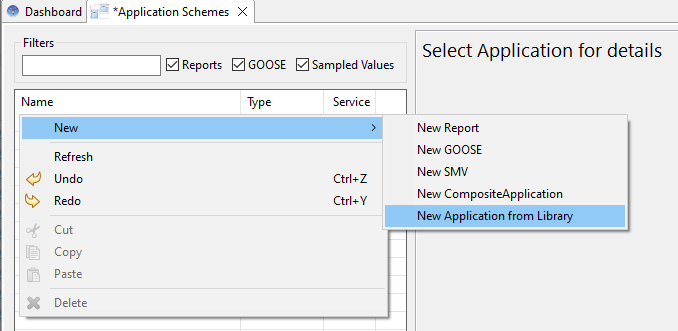
The details pane of an instance of an application template is divided with 2 tabs :
-
The overview type which is similar to the overview of a standard application
-
The application template configuration tab which
Application Template configuration
The Configuration Tab of an instantiated application template will allow the user to configure the application participant and their connection.
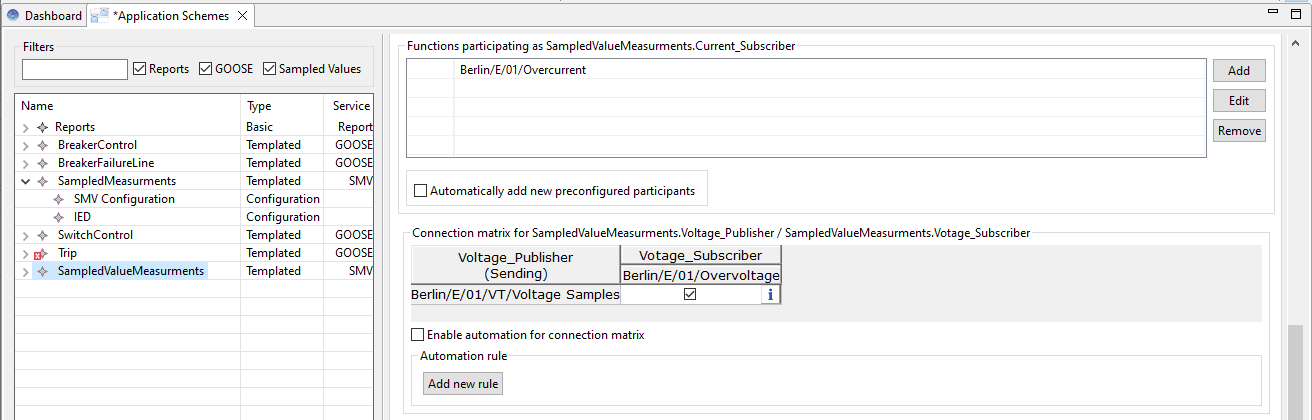
There are two information groups in the configuration panel :
-
Application roles participants
-
Connection matrix
As of now, the type of all participating elements is ‘Function’, but this will be expanded in future releases.
Application roles participants
This panel allows the user to :
-
Add function that will participate to this role.
-
Remove function participation to this role
-
Edit how the function participate by selecting the implementation signal or input.
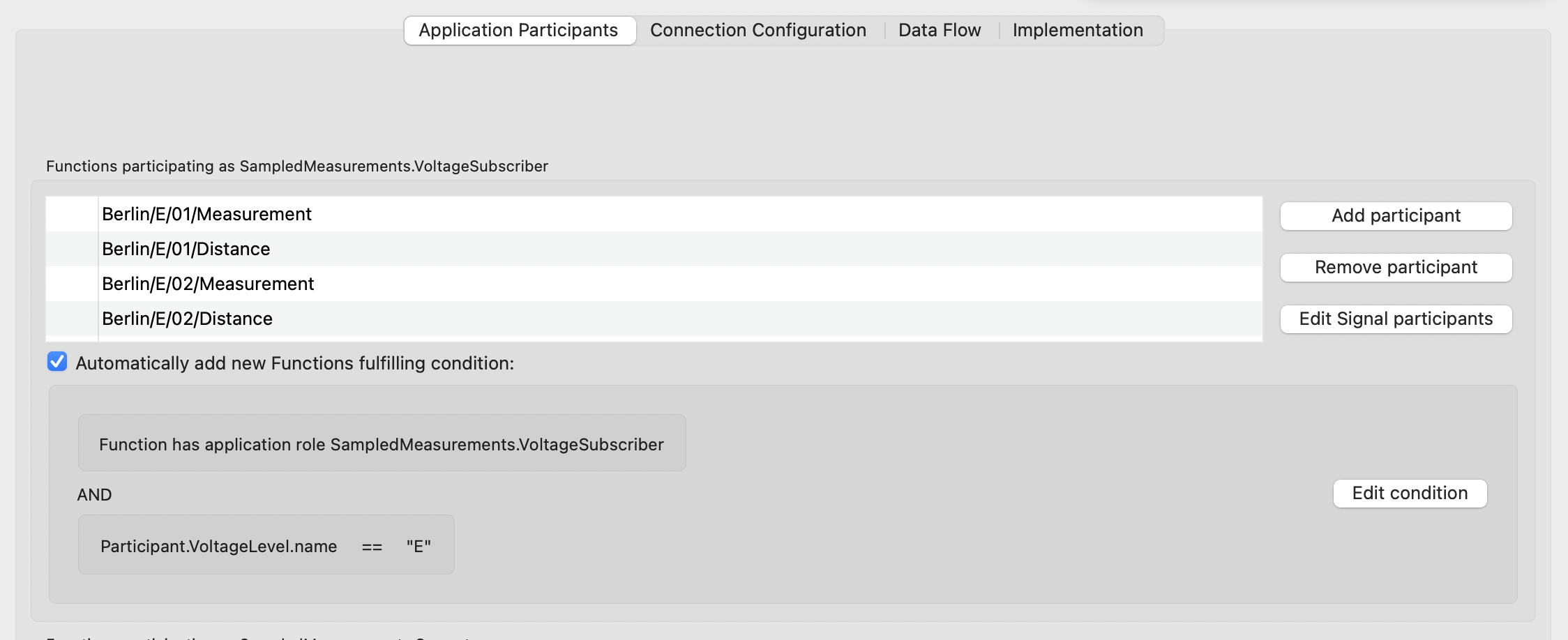
Below the list of participants is a check box that allow the function flagged with the proper application role to be automatically added. When you add the application to the library the ticking of this checkbox is also saved on the library, as well as any rules and conditions.
Application template participants can now be automatically managed using conditions. When the Automatically add new Functions fulfilling condition checkbox is enabled, functions that match the specified criteria are automatically included as participants.
Conditions are composed of one or more rules combined with AND and OR logic operators.
Conditions use one comparator (e.g. EQUALS), and two values. Values can be derived from the participant itself ( Participant.name, Participant.desc, Participant.extendedParameter ), or from a related object ( Participant.Bay.name, Participant.Bay.type ).
There are three wildcard related objects, Specification, Implementation, Any Context, that do not correspond to a single object, but rather search the hierarchy:
|
Related Object |
Resolution Strategy |
Hierarchy Walked |
|---|---|---|
|
Specification |
Starts at the element the variable is resolved against and walks up the specification tree until a matching value is found |
LNode → Function → Bay → VoltageLevel → Substation |
|
Implementation |
Walks up the implementation tree |
Element → Allocation Role / Virtual IED → TIED |
|
Any Context |
Tries specification first; if no value is found, falls back to implementation |
Specification hierarchy, then Implementation hierarchy |
The wildcard related object is primarily useful for extended parameters, since their presence is optional at each hierarchy level. For mandatory properties like name, the value will always be resolved by the same discrete related object such as bay or substation.
For example, <Participant.Specification.exampleParameter> starts at the participating element and walks up through Function, Bay, VoltageLevel, and Substation until it finds a value for exampleParameter. If the parameter is defined on the Bay, the walk stops there.
By contrast, <Participant.Bay.exampleParameter> looks only at the Bay — if the parameter is not present there, no further lookup is performed.
Use the Edit condition button to modify the condition rules.
With conditions, application template instances can be restricted to a subset of the project. This is useful for:
-
Setting up separate instances per bay, voltage level or substation, so that signals from different elements cannot accidentally interact
-
Restricting participants to specific bay types, or specific voltages
-
Combining role-based filtering with location-based filtering for fine-grained control
Add application roles participants
Clicking the ‘Add’ button on the participant list opens a dialog to select new participants: The first tab “preconfigured” will show the function that already are flag with this application role. The Browse all allow the user to select any function of the current project.
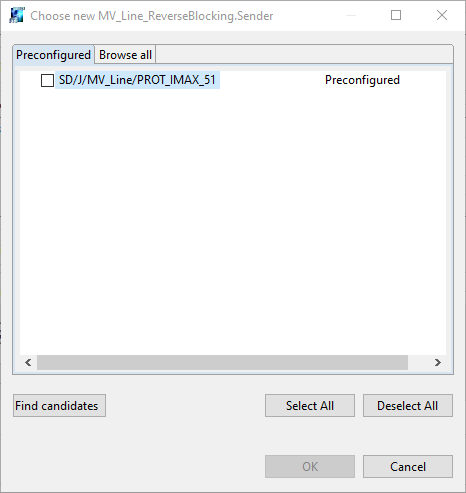
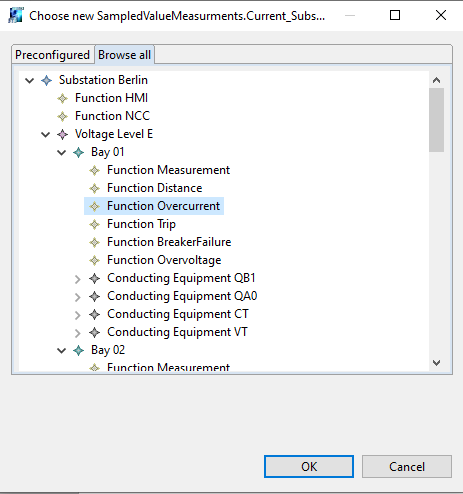
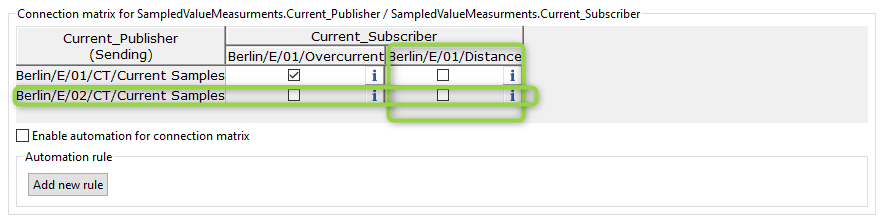
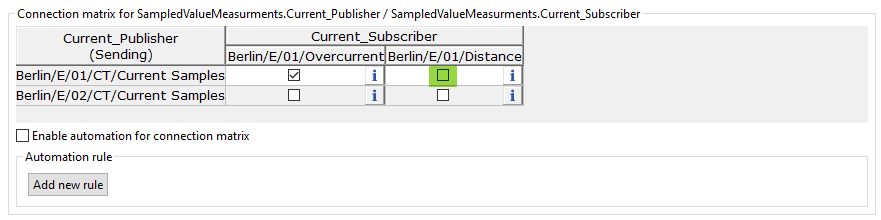
Confirming the choice will add the new function to the participant list. The newly added participant will show up as an additional Row/Column in the connection matrix.
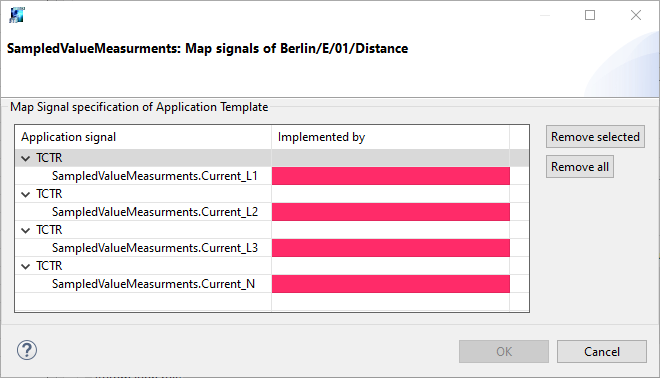
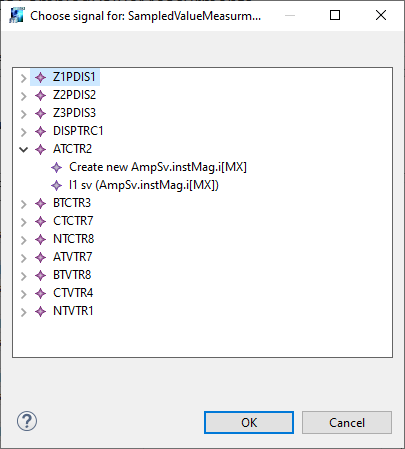
The application role mappings are saved with the participants themselves. If the selected function are not already configured to fulfil this application role an additional dialog will open in which the application signal roles can be assigned to the signals and inputs of the selected element.
Adding an application to the library will enrich the functions used by this application with the (participant roles and signal/input roles). Therefore the related function template should be modified by adding the function with the new information again to the library
-
For subscriber roles clicking on an empty “implemented by” cell allow the user to select or create LNodes input
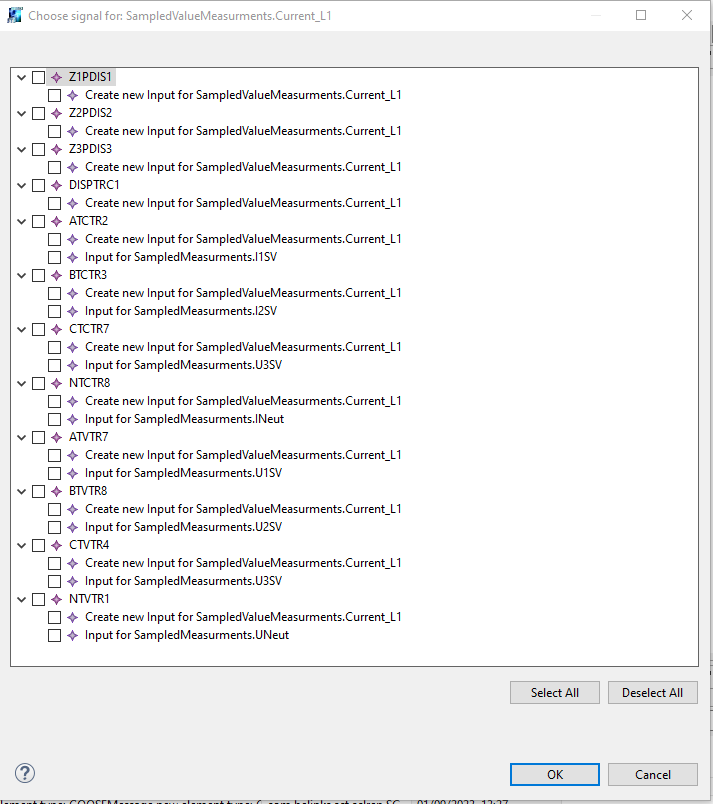
-
For publisher roles clicking on an empty “implemented by” cell allow the user to select or create new LNode signals
Connection matrix
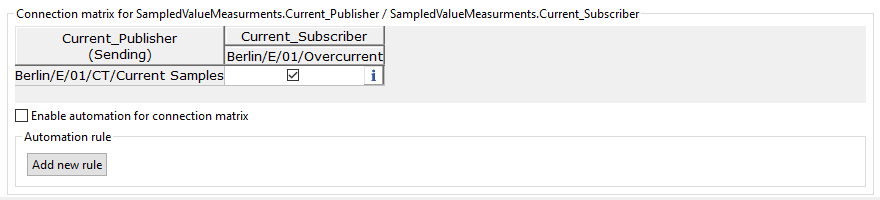
The publisher role will have their entries shown as the table rows, while the subscriber role will be shown as columns.
Applications with more then two exchanges type will show multiple connection matrices.
Below the connection matrix is a checkbox to automatically set the matrix connections. The rules follow the same syntax as the conditions for Participants described above. The checkstate and rules of the connection matrices are also saved in the library.
Adding a tick to the newly created Column will now create all sampled value connections.
Because the input was selected when we have added the function as participation all is properly connected. and can be verified by clicking on the button on the right hand side of each connection matrix cell.
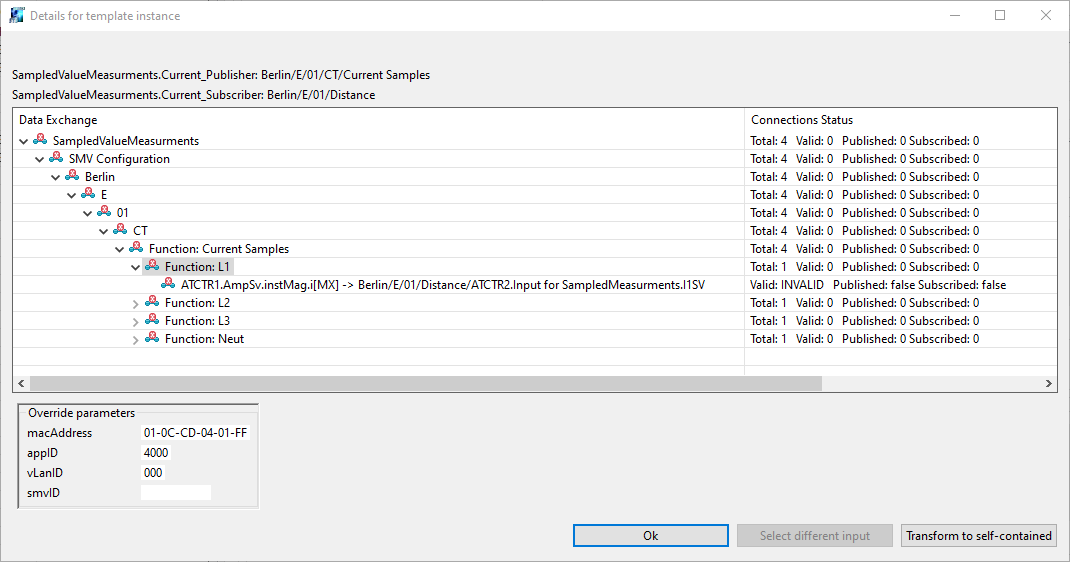
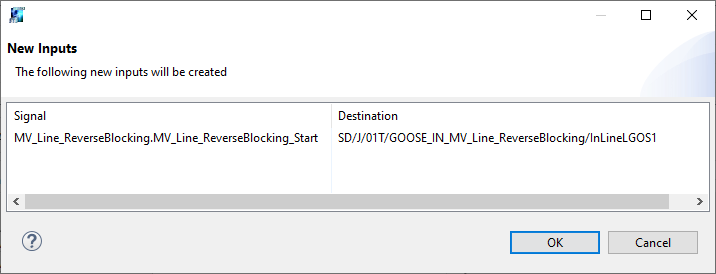
For some applications like the reverse blocking it is possible that not the maximum number of input have been created but only the default one. Then an new dialog is show to inform about the creation of the new input element.
Show the application content
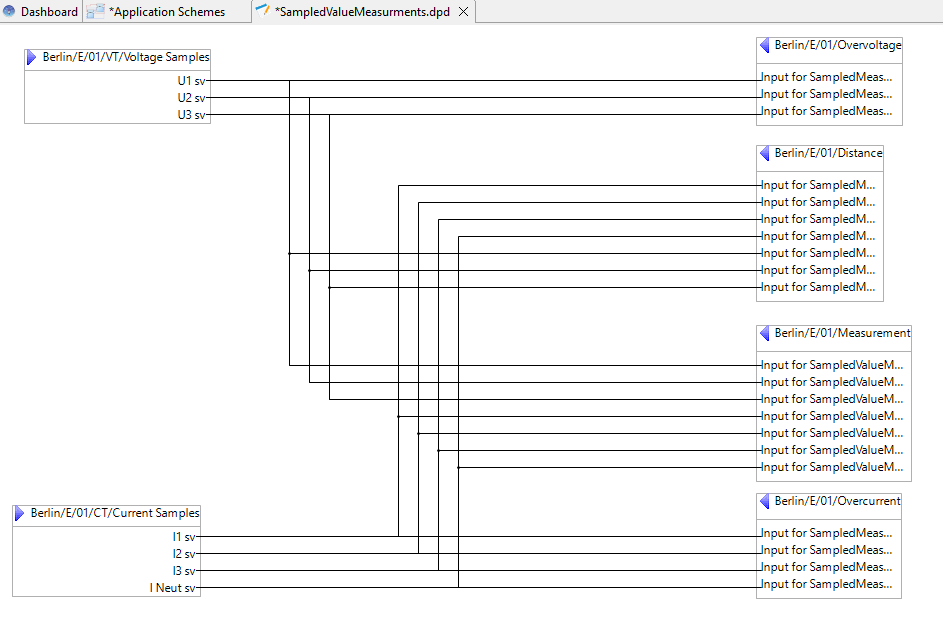
Double-clicking on the instantiate application template entry in the application list will bring up the application diagram, where all the participant and the matrix connections can be seen:
Implementation Tab
The application template configuration now includes an Implementation tab alongside Application Participants, Connection Configuration, and Data Flow. See Implementation Editor for details.