

Overview
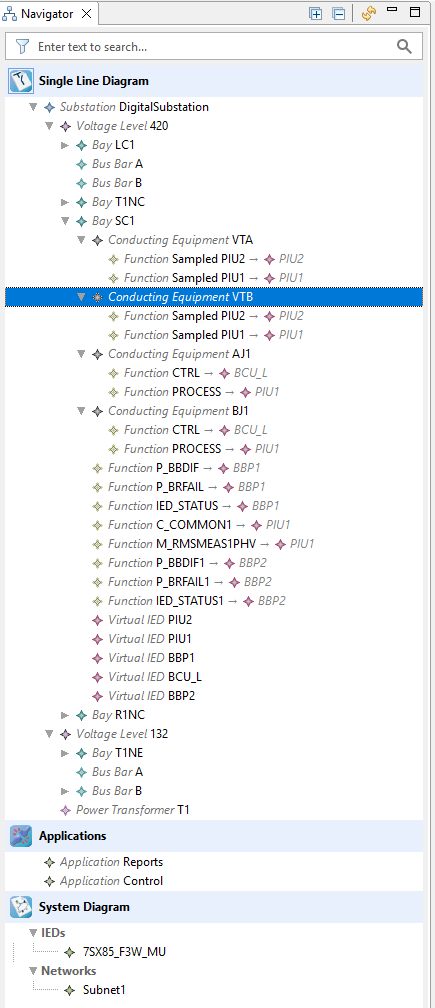
The Navigator view shows the entire project as a unified tree, rooted at three top-level entries — one for each main editor (Single Line Diagram, Applications, System Diagram). It is the primary way to find any element in the project and to navigate to it in the appropriate editor.
The Navigator view opens automatically when a project is opened. If it is not visible, open it via Window → Show View
Tree structure
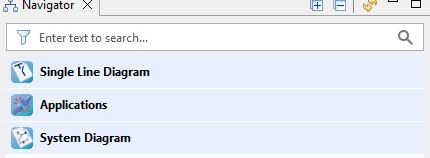
The tree has three top-level anchor rows — visually distinct (bold text, larger icon, light-blue background). Each anchor represents one of the main editors of the project, and each anchor's icon matches the editor icon shown on the Dashboard. On any anchor row, click the editor icon to toggle the row's expand/collapse state, or click the row text to open the corresponding editor.
|
Anchor row |
What is shown underneath |
|---|---|
|
Single Line Diagram |
Substations → Voltage Levels → Bays → Conducting Equipment, with their Functions and assigned virtual IEDs |
|
Applications |
Application Profiles and the Applications they contain |
|
System Diagram |
IEDs and Sub-Networks |
Sub-category header rows (for example IEDs, Networks) appear in bold grey to separate groups within a parent node.
The tree auto-expands to four levels by default. Structural changes anywhere in the project (a new Substation, a new Voltage Level, a new Bay, a new Application, an added or removed IED, an added or removed Sub-Network) trigger an automatic refresh.
Toolbar
The view toolbar has three actions:
|
Action |
Effect |
|---|---|
|
Expand All |
Expand every node in the tree |
|
Collapse All |
Collapse to top-level anchor rows only |
|
Refresh |
Reload the tree from the underlying model |

Search and filter
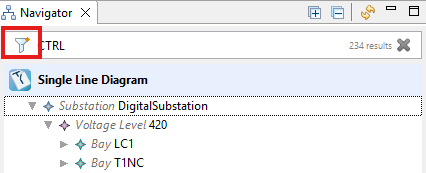
A header bar at the top of the view holds a search field and a filter button.
Text search
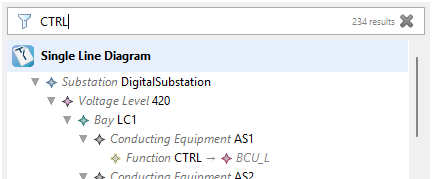
Type into the search field and press Enter to apply. The tree expands and all visible leaves are matched against the search text. The number of visible matches is shown next to the field. Press Esc to clear the search.
Object-type filter
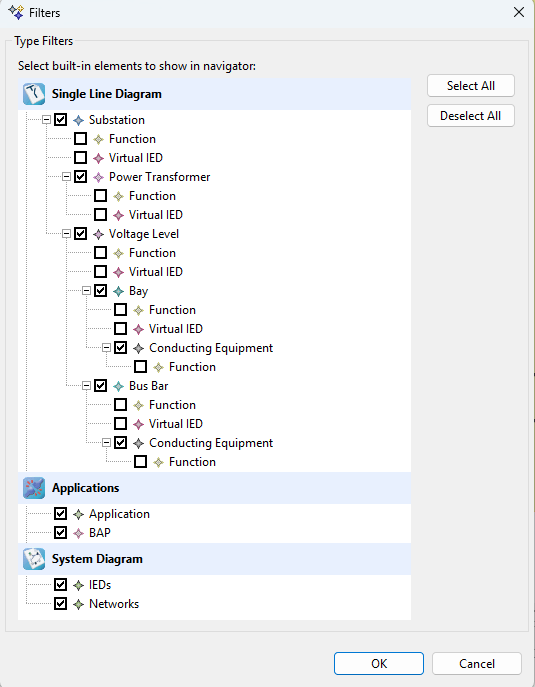
Click the filter icon to open the Navigator Filters dialog. Currently supported filters:
-
Function — show or hide Functions in the tree
-
Virtual IED — show or hide unimplemented (virtual) IEDs
Filter selections are persisted across sessions. When at least one filter is active, the filter icon shows an orange dot overlay as a reminder.
Navigation
Double-click
Double-clicking any non-anchor element in the tree:
-
Opens the editor that displays that element.
-
Selects the element in the editor.
-
Centers the editor viewport on the element.
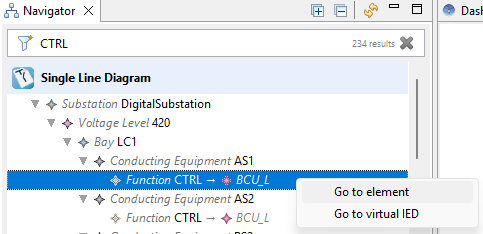
Context menu (right-click)
The right-click menu offers navigation actions whose contents depend on the type of the selected element:
|
Selected element |
Available actions |
|---|---|
|
Substation, Voltage Level, Bay, or Conducting Equipment |
Go to element — reveals the element in the Single Line Diagram editor |
|
Function |
Go to element — opens or focuses the diagram containing the Function. If the Function is assigned to a virtual IED, Go to virtual IED also appears and selects the virtual IED. |
|
Virtual IED |
Go to IED — selects the real IED that implements the virtual IED |
|
Application or Application Profile |
Go to element — opens the Applications view |
|
Sub-Network or IED |
Go to element — reveals it in the System Diagram |
Notes
-
No drag and drop. Elements cannot be moved or reordered from within the Navigator. Use the appropriate editor (Single Line Diagram editor, Applications view, etc.) for structural edits.