

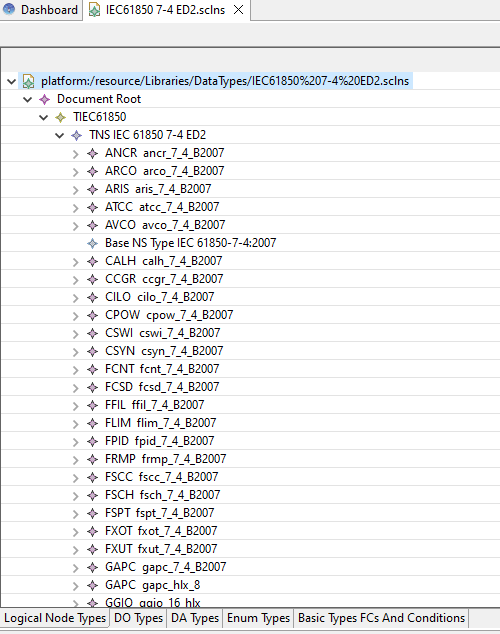
The Namespace Editor shows Datatype grouped into tabs (LN, DO, DA, Enum, basic FC and Condition).
For each element you have the properties view on the bottom of the screen where you can change Datatype element property.
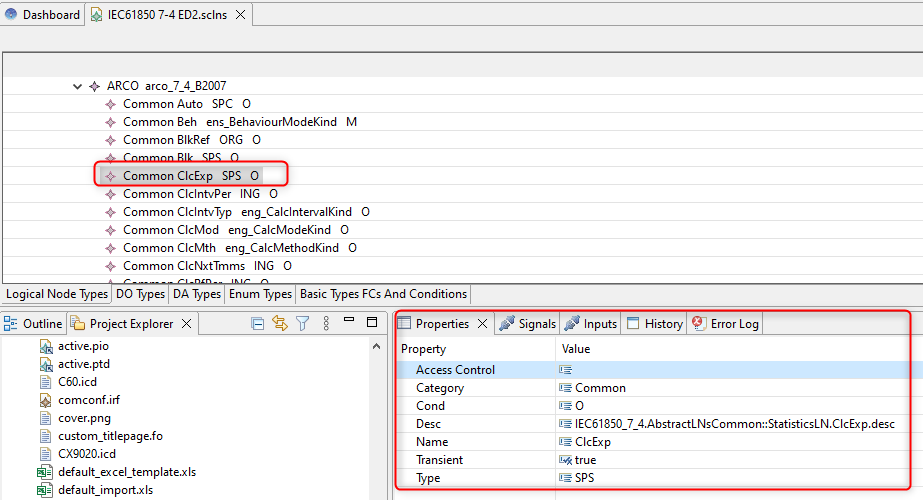
Put as much information as possible in your DataModel, check all the properties and give meaningful information on description field.
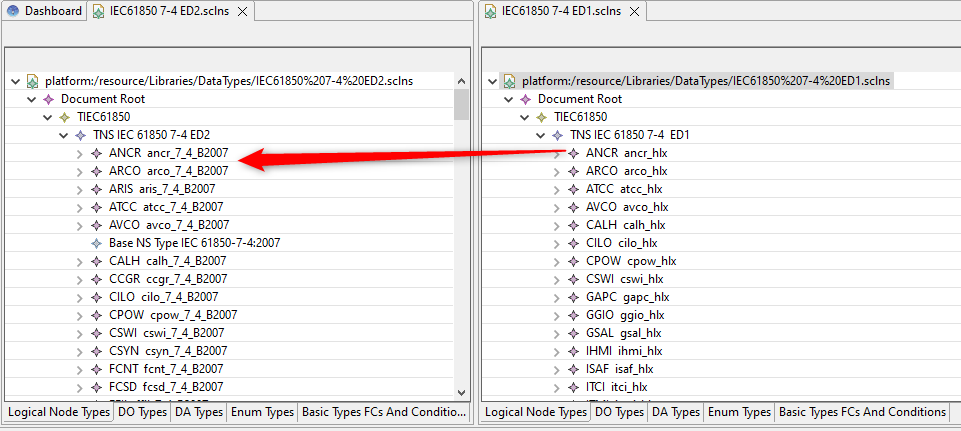
You can also open a second namespace or another scl file with the “Scl Model Editor” and split the screen in 2. Like this you can easily create your model by just “drag and dropping” elements from another model.
When you create your own namespace, you should pay attention to the IEC61850 standard especially in terms of which elements are mandatory.
Be careful, with element naming. It is currently not well supported to have a namespace element type id contained in another element type id (e.g. MY_XSWI is include in MY_XSWI_BCU). This can have impact on your project depending on the order of type usage. To remove this potential issue you should use always unambiguous naming for element type id (e. g. MY_XSWI and MY_BCU_XSWI) or use always a suffix (e.g. MY_XSWI_standard and MY_XSWI_special1).