

Helinks STS allows the user to export and import excel signal list files.
These Import/Export features are based on a predefined Excel template. The excel template as the import/export process can be customized by the utility with a dedicated Utility Package.
Export
The export is available by the “Excel export” button in the signals view :
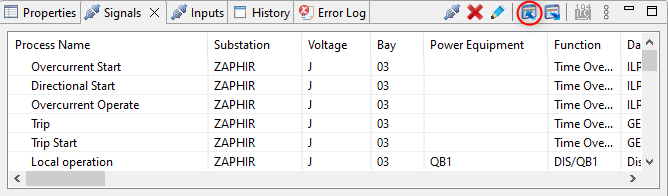
The export will show a dialog allowing the user to select the destination of the exported Excel file.
At the end of the exportation process a dialog shows information/warning/error message and the Excel file is created on the hard drive.
Import
The import is available by the Dashboard/import button and the “Excel import” button in the signals view :
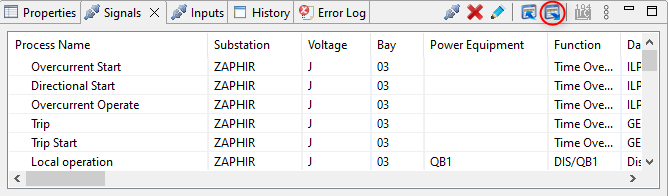
By using the import of the Dashboard, this will show a dialog allowing the user to select the imported Excel file. This file is then stored in the project folder under stg/default_import.xls.
By using the signal list import button, this will reimport the Excel file stored on the project folder under stg/default_import.xls.
At the end of the importation process a dialog shows information/warning/error message and a copy of the imported file is generated under the project out folder. This copy contains information about the importation process if the template contains the Columns “Import Result” and “iec61850fixed”.