
Application Template configuration
Using an application template is a two-step process.
In the first step, assign existing functions in the project to an application role. Assigned functions are called Participants throughout the user interface. This allows the application template to identify signals and inputs that should be involved in the application.
In the second step, participants of different application roles can be connected to each other. In this step, an actual communication instance is created by connecting the signals of one participant to the corresponding inputs of the other, and vice versa.
As of now, the type of all participating elements is ‘Function’, but this will be expanded in future releases.
Assigning participants:
In the ‘Application Participants’ tab of the application templates detail screen, each application role has a configuration area, where existing participants are shown, and can be added or removed.
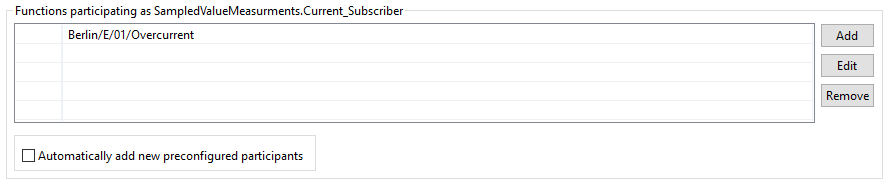
On the bottom of the panel you have a check box that allow the function flagged with the proper application role to be automatically added. When you add the application to the library the ticking of this checkbox is also save on the library
Add application roles participants
Clicking the ‘Add’ button on the participant list opens a dialog to select new participants: The first tab “preconfigured” will show the function that already are flag with this application role. the Browse all allow the user to select any function of the current project.
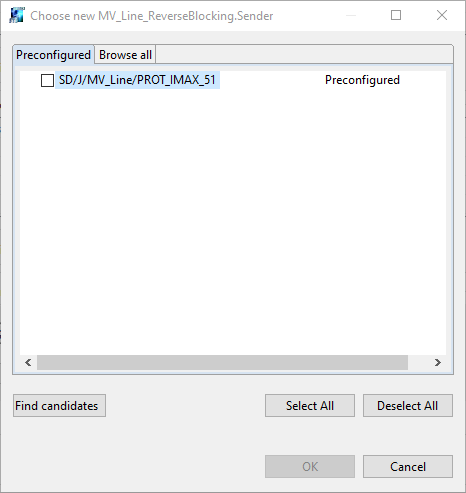
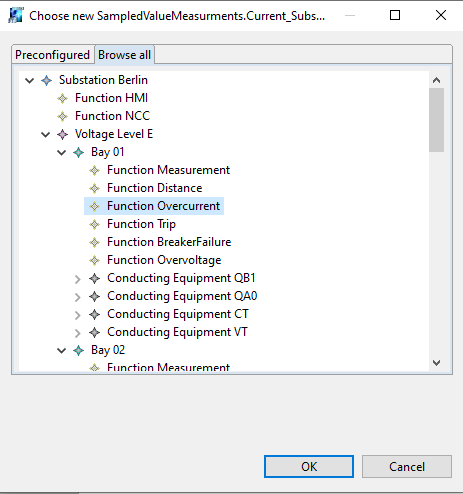
Confirming the choice will add the new function to the participant list.
The newly added participant will show up as an additional Row/Column in the connection matrix.
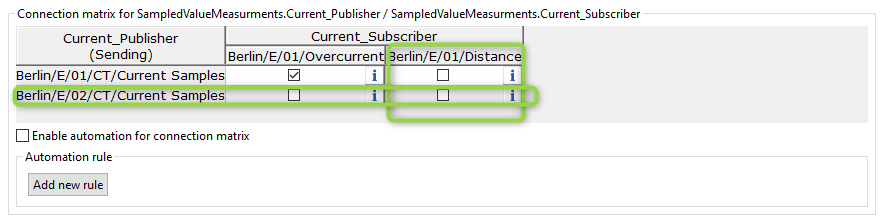
The application role mappings are saved with the participants themselves. if the selected function are not already configured to fulfill this application role an additional dialog will open in which the application signal roles can be assigned to the signals and inputs of the selected element.
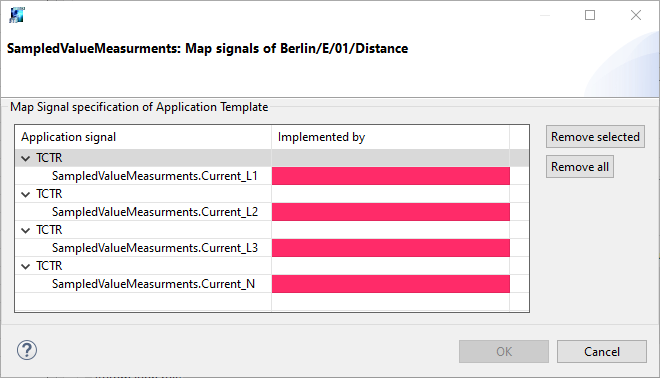
Adding an application to the library will enrich the functions used by this application with the (participant roles and signal/input roles). Therefore the related function template should be modified by adding the function with the new information again to the library
-
For subscriber roles clicking on an empty “implemented by” cell allow the user to select or create LNodes input
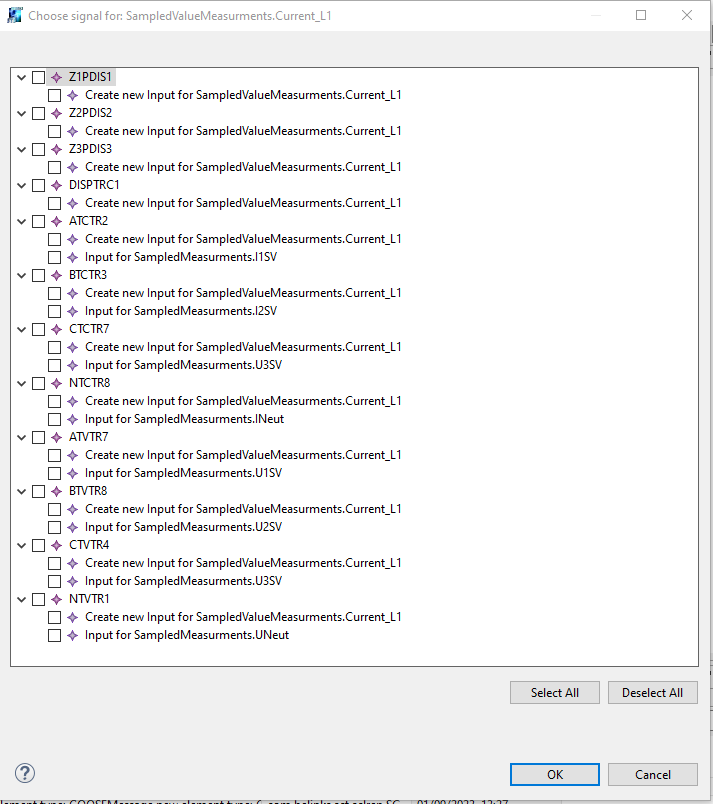
-
For publisher roles clicking on an empty “implemented by” cell allow the user to select or create new LNode signals
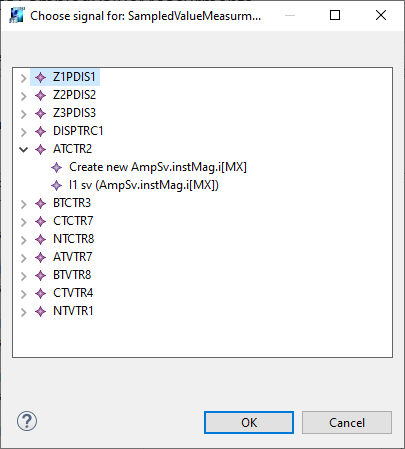
Connection matrix
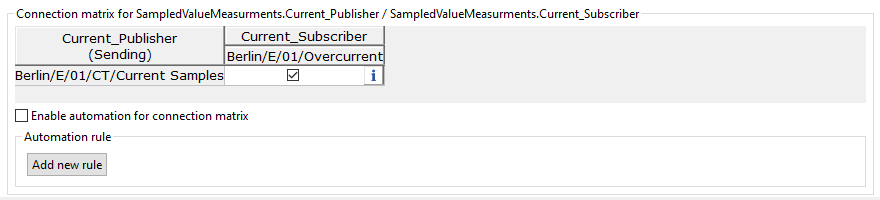
On the bottom of the panel you have a check box that allow the function flagged with the proper application role to be automatically added. When you add the application to the library the ticking of this checkbox is also save on the library
The publisher role will have their entries shown as the table rows, while the subscriber role will be shown as columns.
Applications with more then two exchanges type will show multiple connection matrices.
Adding a tick to the newly created Column will now create all sampled value connections.
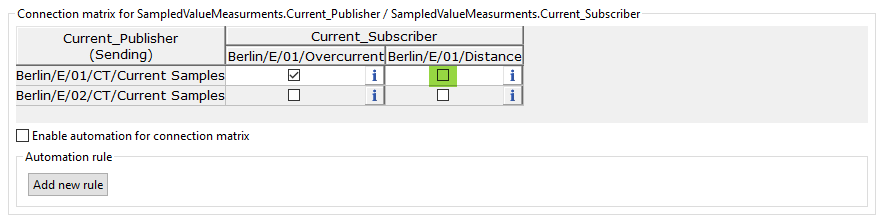
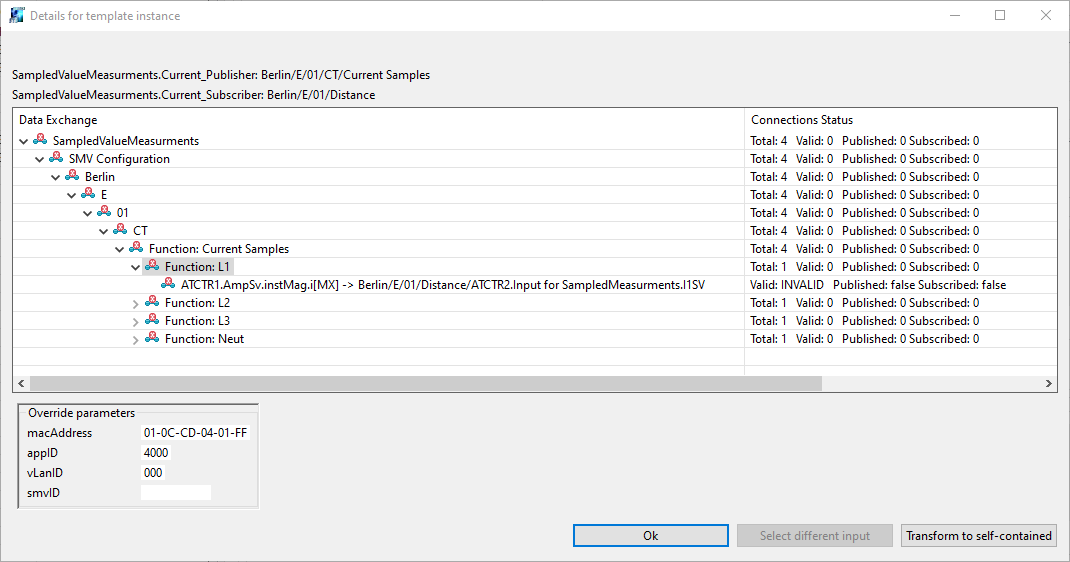
Because the input was selected when we have add the function has participation all is properly connected. and can be verified by clicking on the button on the right hand side of each connection matrix cell.
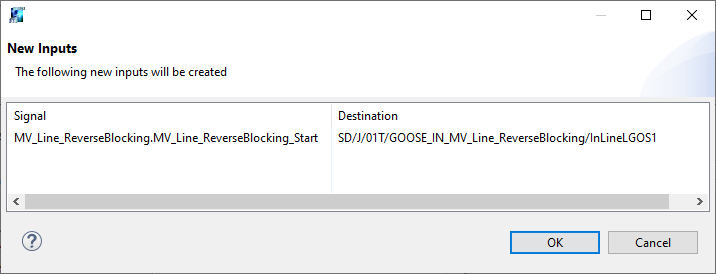
For some applications like the reverse blocking it is possible that not the maximum number of input have been created but only the default one. Then an new dialog is show to inform about the creation of the new input element.
Show the application content
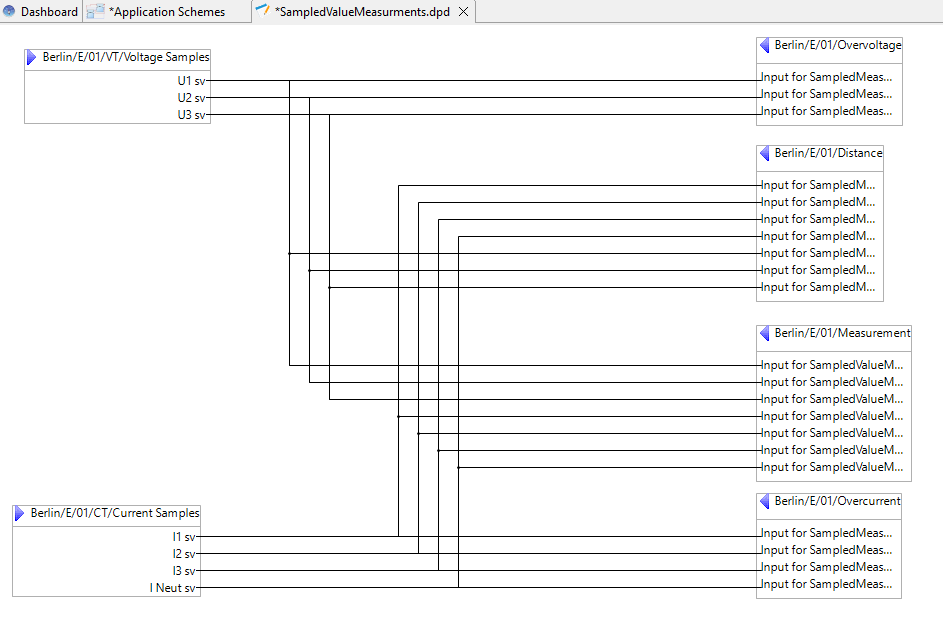
Double-clicking on the instantiate application template entry in the application list will bring up the application diagram, where all the participant and the matrix connections can be seen: