

This exercise guides through the creation of a Custom Namespace File. The Custom Name Space file represents a customer-specific IEC 61850 data model. It is used in STS to create a specification based on customized logical Nodes.
-
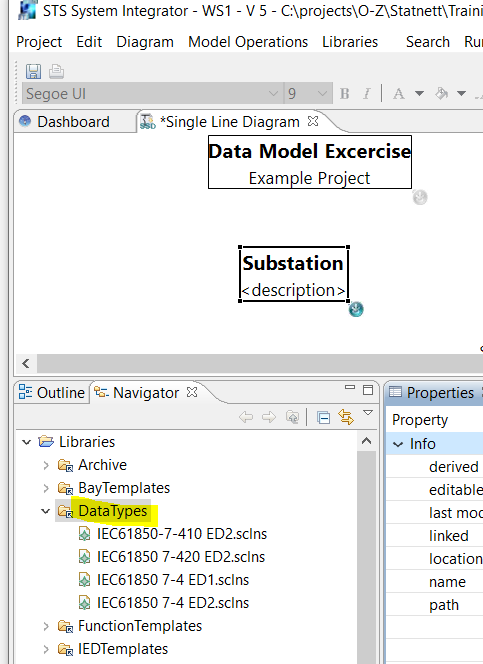
Navigate in the Libraries Folder to the DataType folder
-
Create a new Namespace File with the right mouse click. Select SclNsModel from the list of wizards in the folder “Example EMF Model Wizards”.
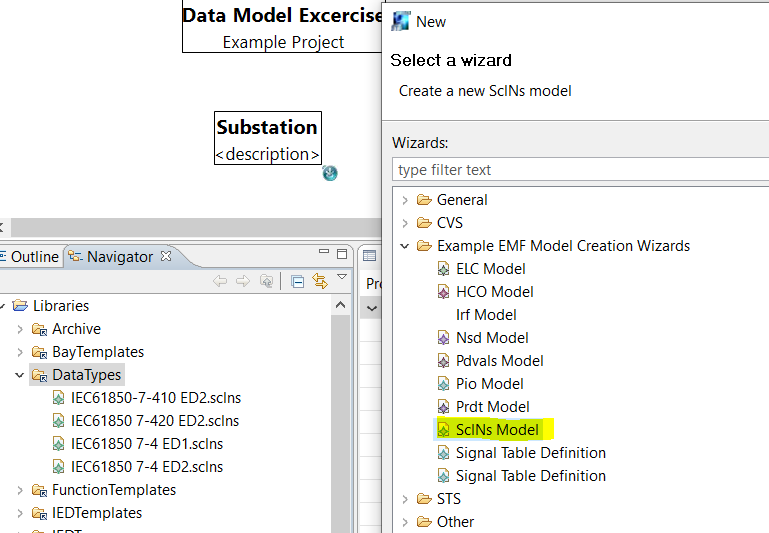
Name it MyCustom.sclns and select IEC61850 as model Object.
-
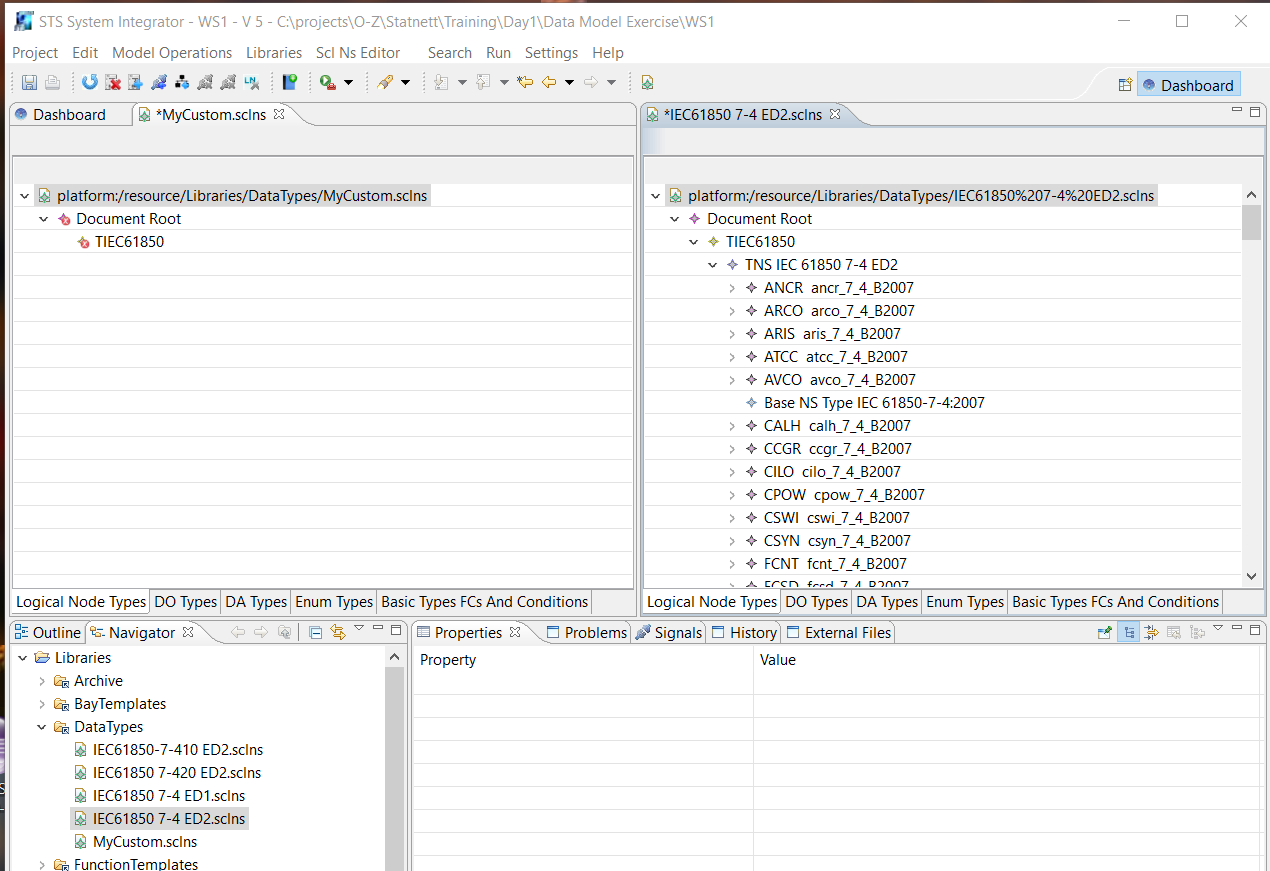
Open another copy of the Namespace Editor by right-clicking the IEC61850 7-4 ED2.sclns file and split the screen by dragging the editor tab to the right border of the application.
-
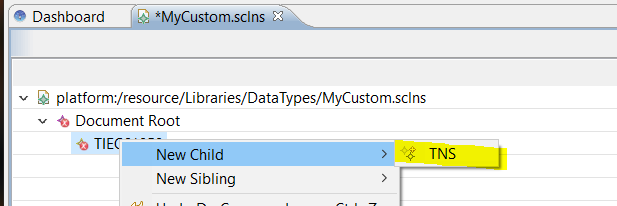
Create a new Namespace element by right-clicking on the TIEC61850 root element and adjust the attributes:
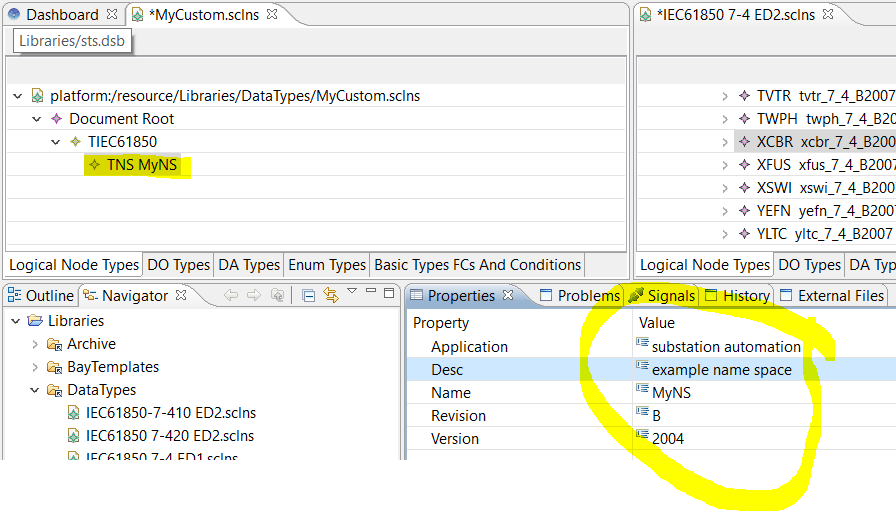
-
Select the LNode XCBR and PTOC of 7-4 file and drag them to the TNS element.
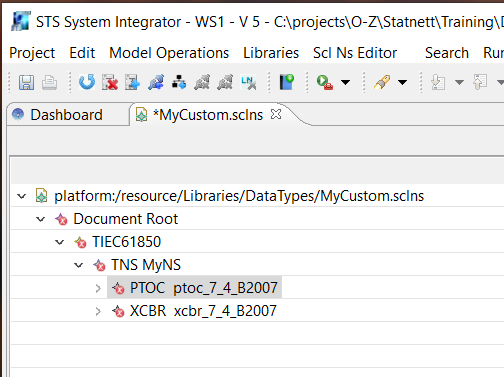
-
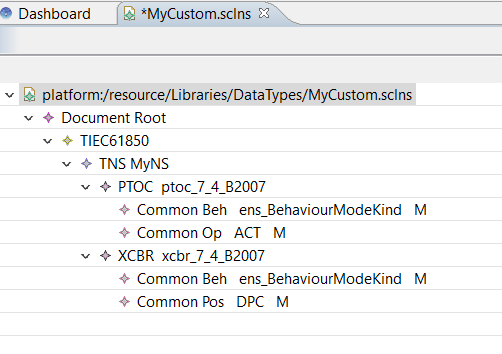
Remove all attributes but Beh, OP, and Pos of the LNode.
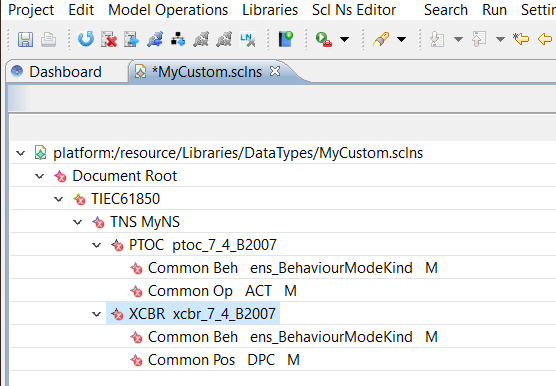
-
Hover over the DO with the error indication until you see the error message:
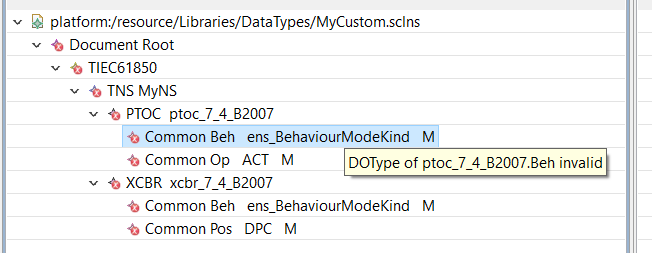
-
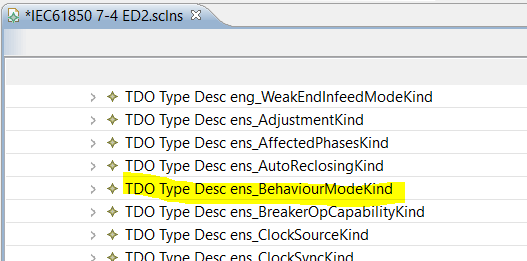
Look for the missing DOType element in the 7-4 file and drag it to the TNS element. Repeat the operation until all errors of the DO Types are gone.
-
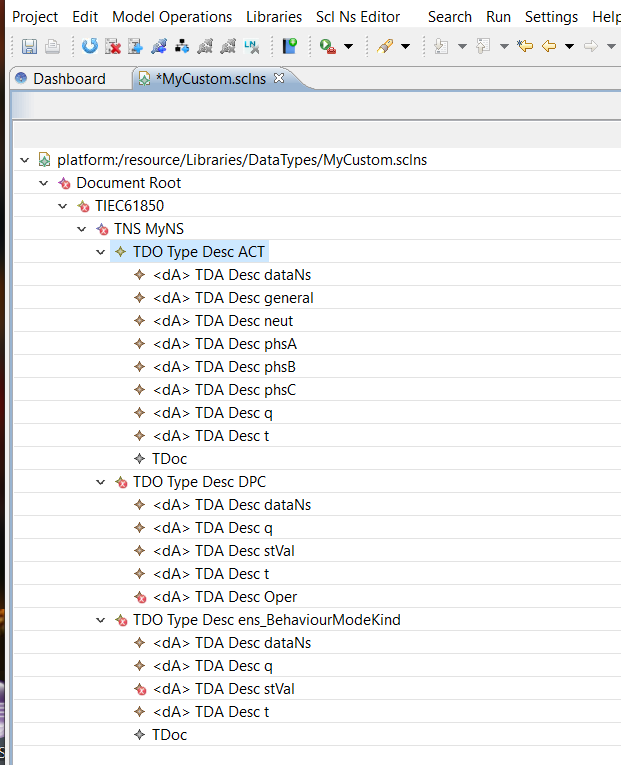
Open the DO Types Tab and remove all Data Attributes but dataNs general, phsA, phsB, phsC, neut stVal, Oper, q and t
-
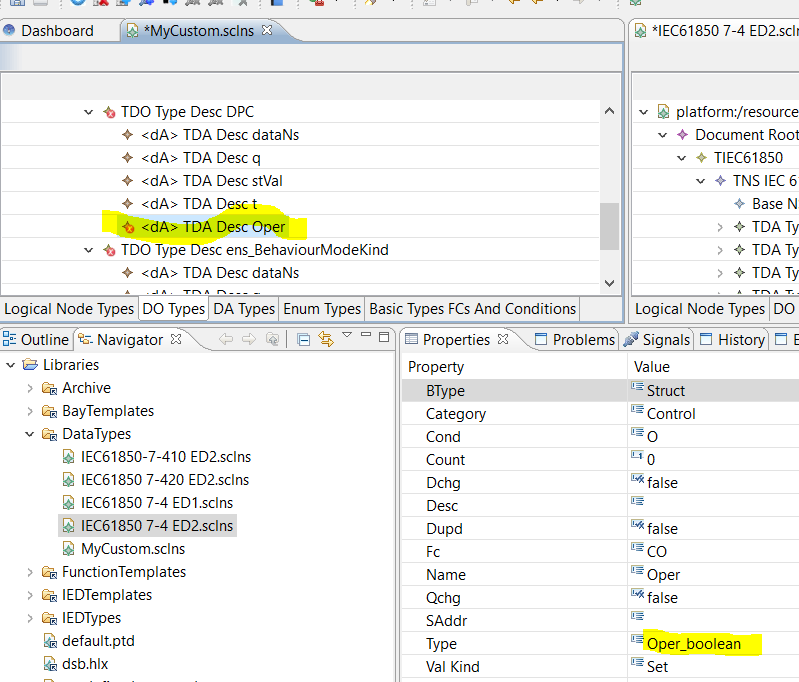
Observe remaining errors for the Data Attributes Oper and stVal.
-
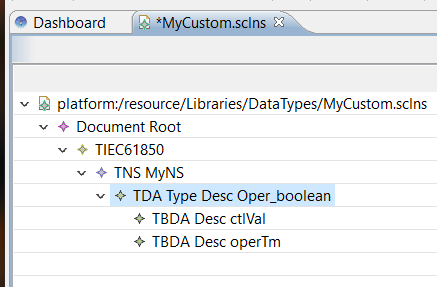
Complete the file by adding missing Data Attribute Types form the DA Types and Enumeration tab. Remove all attributes of Oper_boolean but ctlVal and operTm.
-
Save and reopen the file MyCustom.sclns. All errors should be gone.
-
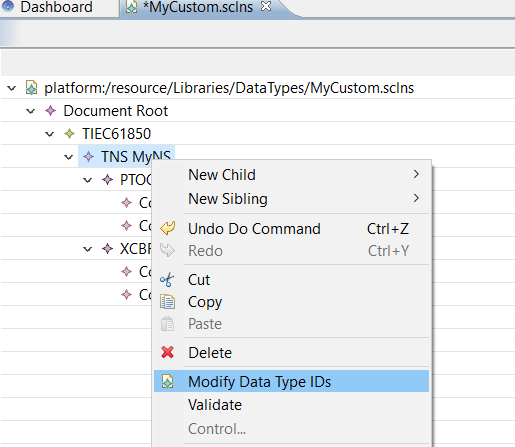
Right click on TNS and select Modify Data Type IDs
-
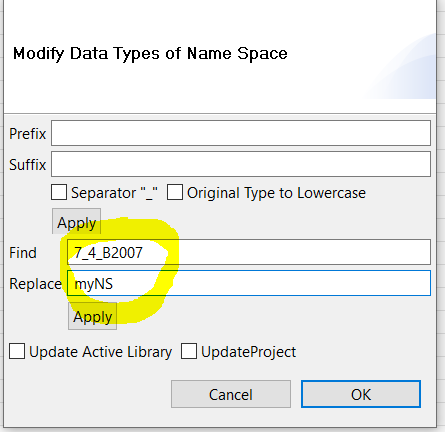
Use Find Replace to change all Type IDs in your file. Do not forget to press Apply:
-
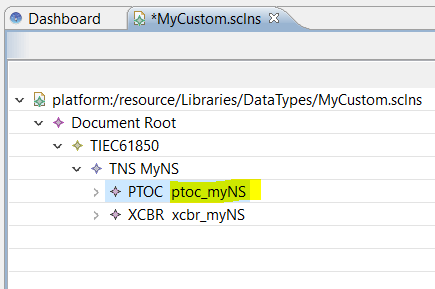
Observe that all Data Type IDs have changed.
-
Save the file. The exercise is completed.